You can add photos or videos from the property’s calendar.
Select the desired flock, then access the calendar from the flock’s horizontal menu by clicking on ‘Calendar’.
Click on ‘Add an event’ then ‘Event type’: Media.
The photo or video will appear in the calendar and will be visible to everyone who has access to that flock.
Exporting and sharing data
Authorised users
Your data is shared with Aniprev users who have access to your batches: technicians, vets and farm staff. Depending on your account settings, it may also be accessible to your organisation, your feed supplier, etc. If you have the logistics or co-operative package, the packing centre and the abattoir may also have access to it.
Export Excel
To facilitate the exchange of information and the sharing of documents, all data tables can be exported to Excel format. From the ‘Data’ menu in a batch’s horizontal menu, click on the following icon:
PDF generation
PThere are several features that allow you to generate PDFs: for example, you can download ICA forms, public documents and technicians’ visit reports in this format.
Data model
It is also possible to configure a template to import and export data in the desired format, without having to redefine your preferences each time. To do this, select the “Data Management” module at the very bottom of the main menu.
Generate an ICA record
When updating a batch, you can automatically generate its ICA record. In the batch’s horizontal menu, click on “ICA” and then on the “+” icon on the right-hand side of the page. The fields in blue can be edited or completed. Save once you have finished entering the details.
Flock documents
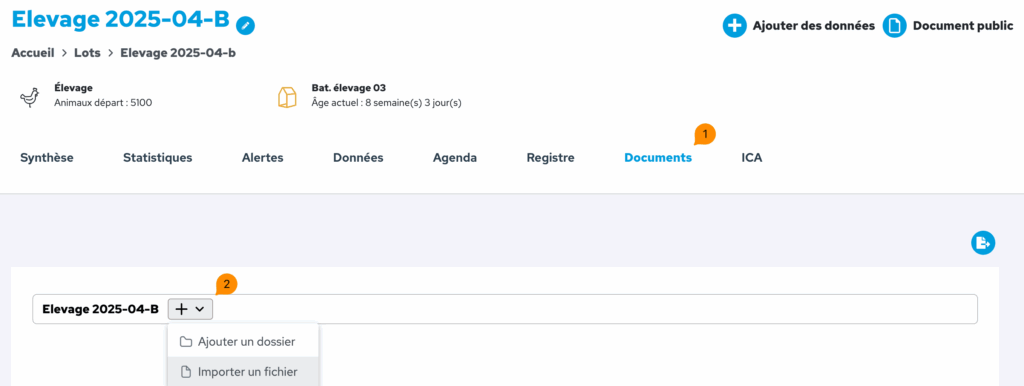
Within each lot, there is a “Documents” folder accessible via the flock’s horizontal menu. This is where reports from technicians’ site visits are automatically saved, in a folder called “Reports”. You can add as many folders and documents as required – delivery notes, orders, etc. These documents can be viewed and downloaded by everyone assigned to that flock.
The farmer has access to a ‘Documents’ feature in the vertical menu on the left. Here, they can view documents relating to their batches, as well as those for archived batches. They can also add folders and documents here that will not be visible to technicians. Invoices, administrative documents, etc.
The app allows you to generate a public document in PDF format containing the key details of the batch. To do this, select a batch from the vertical menu on the left, then click the ‘Public document’ button in the top right-hand corner.
Next, select the information to include in the document: batch overview, summary, weekly data table, charts, etc.
Finally, customise the public document by changing the order of the sections and selecting the columns to appear in the weekly data table, if you selected this option in the previous step.
Click on “Export to PDF”.
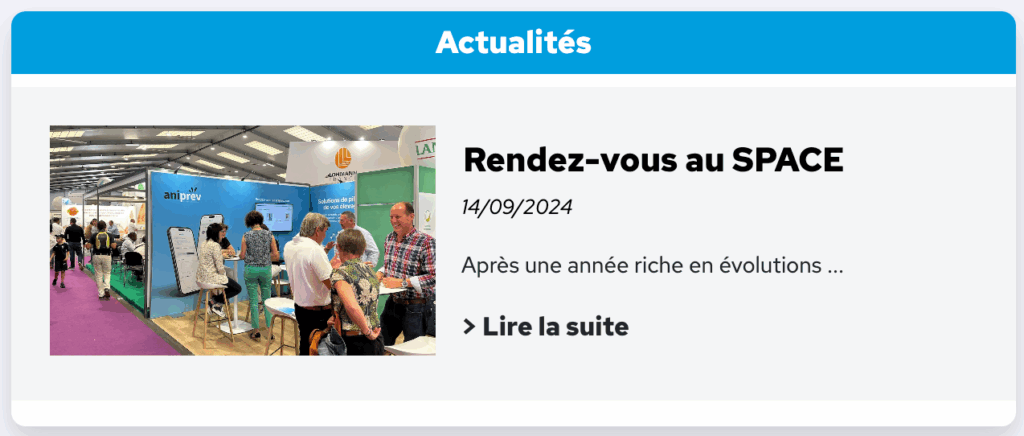
View your organisation’s news
On the Aniprev homepage, a feature highlights the latest news from your organisation or the poultry sector.
Shareable calendar
The flock schedule can be viewed and edited by all users assigned to that flock.
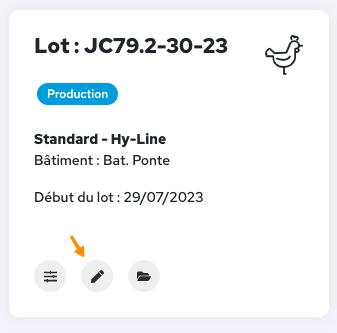
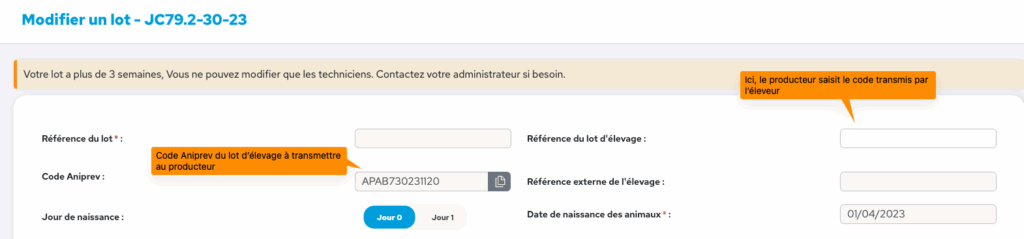
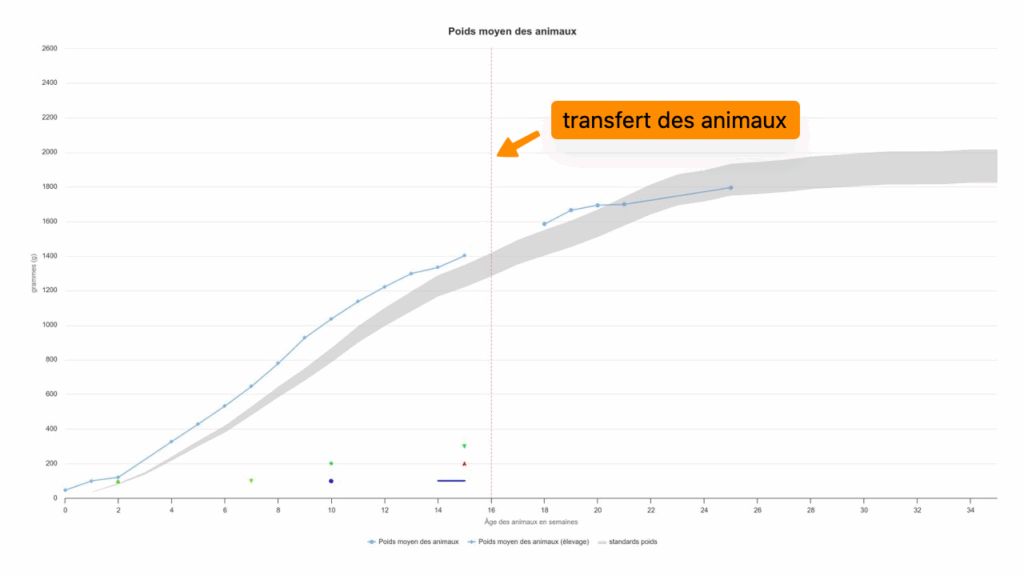
It is possible to link the rearing batch to the laying batch, to give the producer a clearer picture of how their batch is progressing and to enable better traceability. The app can therefore display data for both flocks on the same graphs. To do this, the farmer must provide the producer with their batch’s Aniprev code, and the producer must enter it in the batch details: