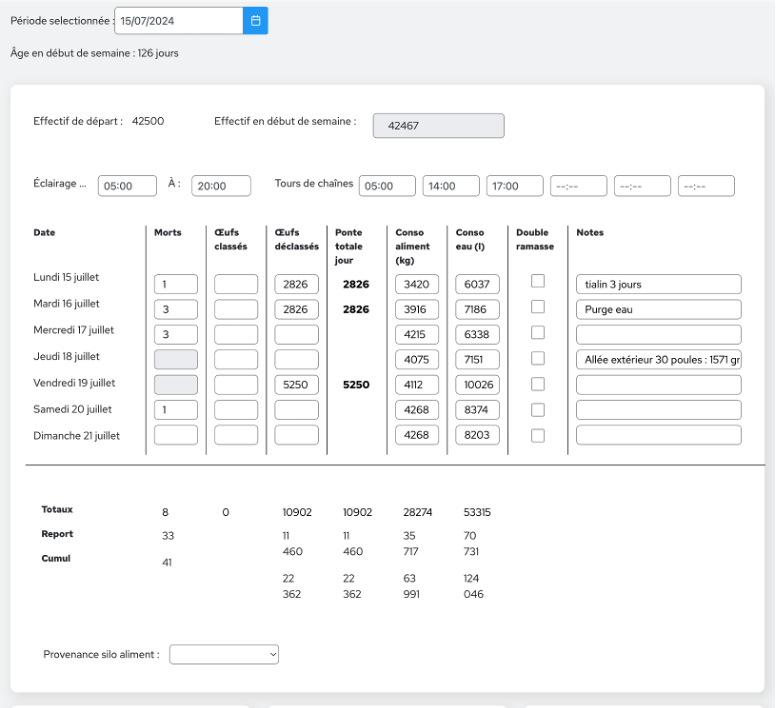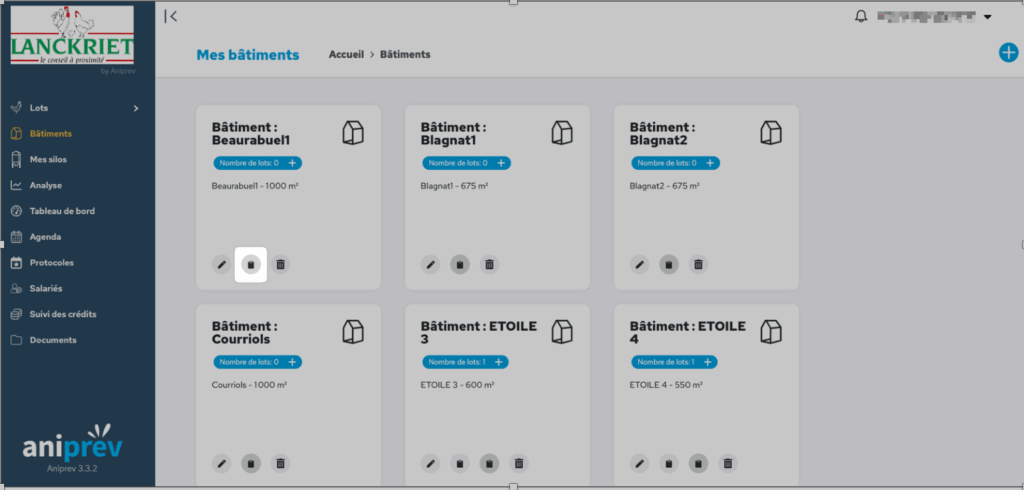
To add data for a flock, select that flock from the left-hand menu, then click the ‘+’ in the top right-hand corner to add data. You can enter data in standard mode or in notebook mode.
Classic mode offers a more comprehensive and detailed form, with a clear layout. It allows you to enter data by following a guide provided by Aniprev, topic by topic. Shortcuts at the top of the page allow you to access the various topics directly. You must first specify whether you are entering data for a specific date or for a given period.
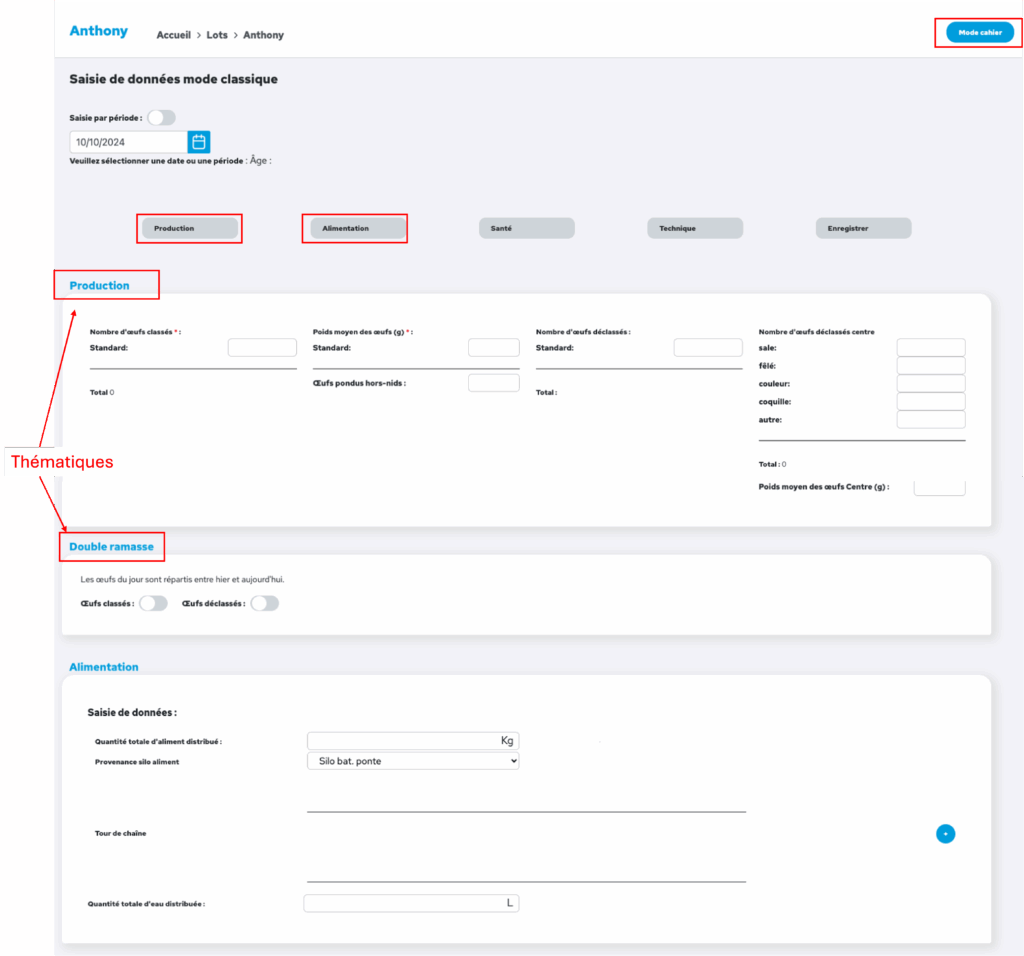
Notebook mode, which can be accessed by clicking the ‘Notebook mode’ button in the top right-hand corner of the data entry screen, replicates the breeding logbook familiar to breeders. More concise, it contains fewer fields than classic mode and presents them in a weekly table for a clear overview that fits on a single screen. It allows you to enter data on a daily and/or weekly basis. You can switch back to classic mode by clicking on ‘classic mode’ in the top right-hand corner of the page.