Alerts set up in the user profile appear in the calendar.

Managing your flocks in Aniprev
Alerts set up in the user profile appear in the calendar.
Select the required flock, then access the calendar from the batch’s horizontal menu by clicking on “Calendar”.
To create a note, click on “Add an event” then “Event type”: Note.
Fill in the description fields. Confirm.
The note appears in the calendar and is visible to everyone with access to this flock.
It is also possible to create a note whilst entering data.
When feed is added to a silo, this triggers an event in the calendar.
You can add photos or videos from the property’s calendar.
Select the desired flock, then access the calendar from the flock’s horizontal menu by clicking on ‘Calendar’.
Click on ‘Add an event’ then ‘Event type’: Media.
The photo or video will appear in the calendar and will be visible to everyone who has access to that flock.
The visitor log is used to keep a record of everyone who visits a plot. It works like a sign-in sheet, with the option to leave a comment explaining the reason for the visit.
The log can be accessed in the plot module by clicking on ‘Log’ in the plot’s horizontal menu. To create an entry, click on the ‘+’ icon in the top right-hand corner and fill in the fields that appear.
You can view the technicians’ reports in the batch documents.
In the horizontal menu for the batch, click on “Documents” and then on the “Reports” folder.
You can also save external documents there – sent by technicians who do not use Aniprev – by clicking on the button below:

You can change the number of animals in an existing batch up to 3 weeks after it has been created.
There are two ways to do this:
From the lot’s home page:
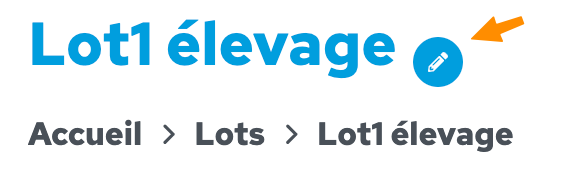
Click on the pencil icon next to the lot’s name at the top of the page
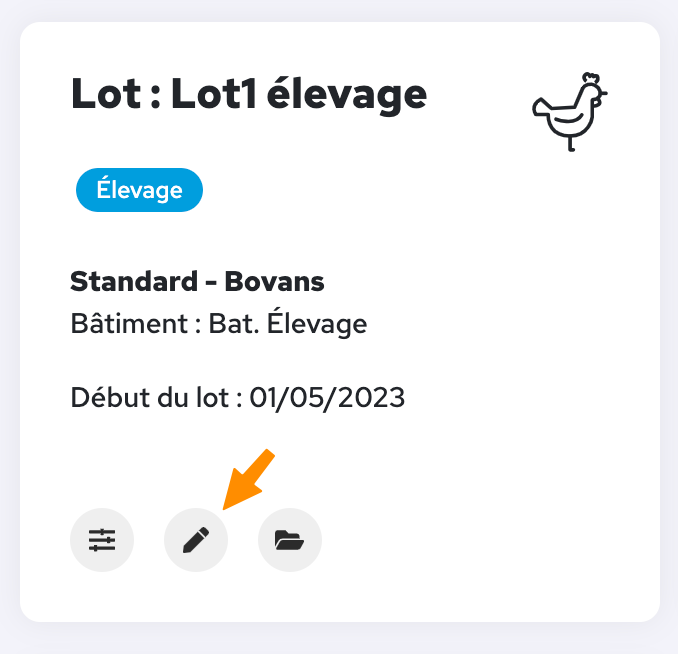
From the ‘Batches’ menu on the home page: In the relevant batch, click on the pencil icon
When updating a batch, you can automatically generate its ICA record. In the batch’s horizontal menu, click on “ICA” and then on the “+” icon on the right-hand side of the page. The fields in blue can be edited or completed. Save once you have finished entering the details.
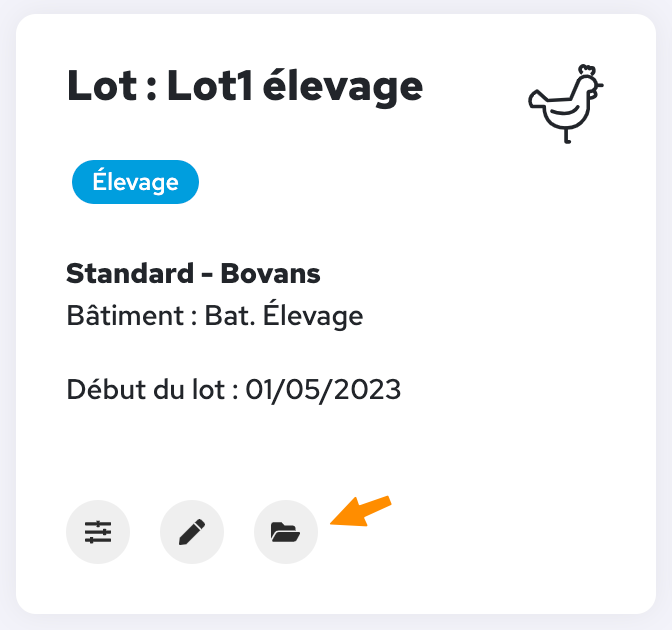
To archive a batch, click on the ‘folder’ button for that flock on the Flocks menu’s home page. Data from an archived flock can still be viewed and used in the Analysis menu for comparisons between flocks.